 Android
 Windows 10 / 11
Clear game video
Capture at the device’s display shape.
The receiver follows the phone orientation so landscape and portrait gameplay fit naturally instead of sitting in an oversized empty window.
Android game capture · USB-first · OBS-ready
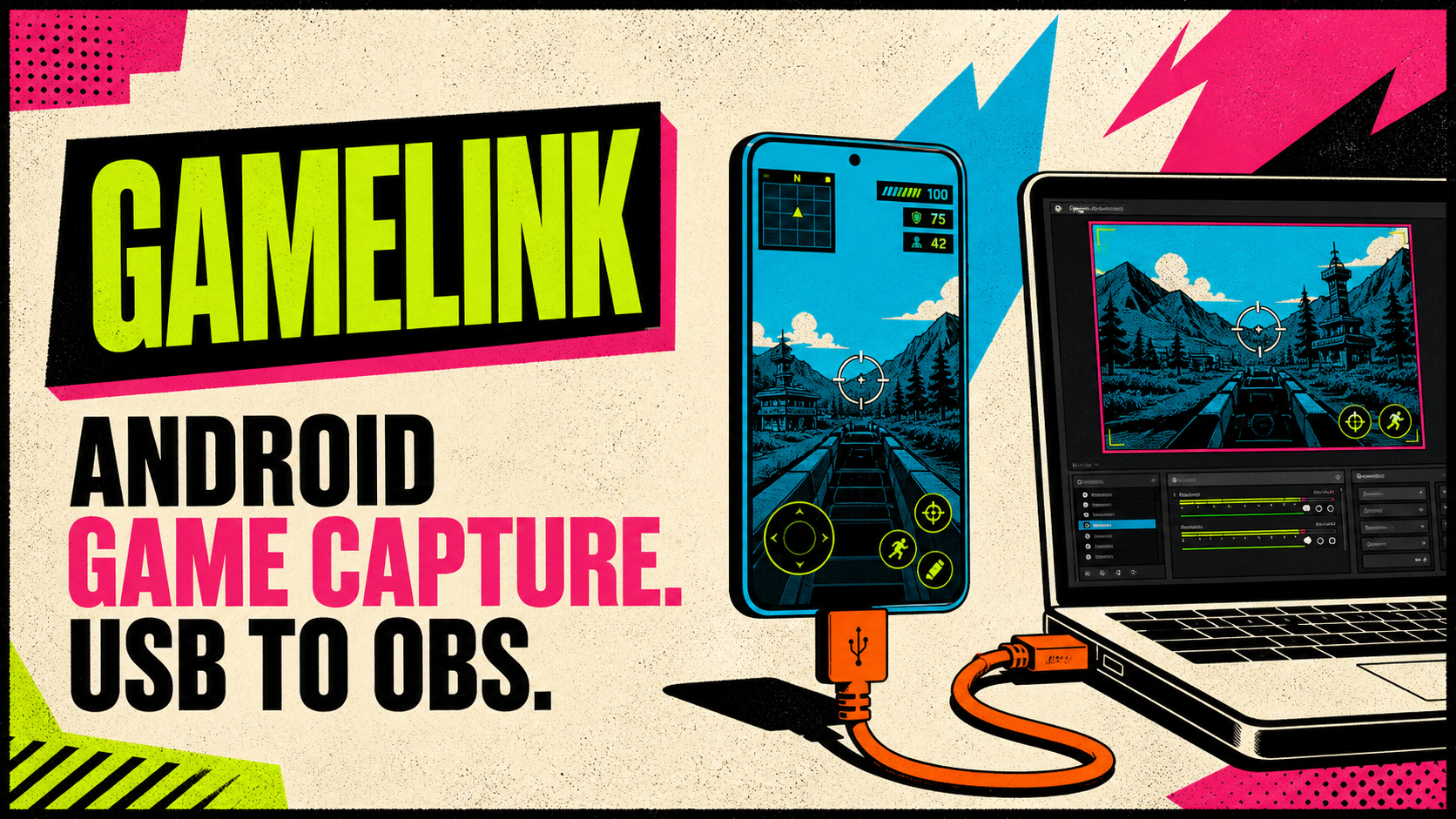
GameLink makes your Android display a clean capture source for a Mac or Windows PC. Use a data-capable USB cable, then send high-quality gameplay and compatible game audio into your streaming setup.
Start here — free downloads
Install Android first, then the receiver for the computer where you use OBS.
Keep the whole route local—no cloud account or Wi-Fi stream required.
Use a data-capable cable between Android and your Mac or Windows PC. Enable USB debugging when GameLink asks for the local connection.
Open the receiver on the computer, then start sharing from GameLink on Android and approve screen capture.
Use Window Capture for the GameLink receiver. Add its application audio separately when you want game sound in your stream.
Clear game video
The receiver follows the phone orientation so landscape and portrait gameplay fit naturally instead of sitting in an oversized empty window.
Separate audio stream
GameLink can send compatible Android playback audio separately from the video stream, keeping your scene layout and mixer flexible.
Built for creators
Keep your Android game source away from the rest of your desktop and add the dedicated GameLink Capture window to any OBS scene.
Everything you need for the first connection.
No. GameLink is designed for a local USB route using Android USB debugging and a data-capable cable.
Game audio availability depends on Android version and each game’s own audio-capture policy. GameLink keeps compatible playback audio separate when it is available.
Yes. The receiver is orientation-aware so it can resize for portrait or landscape gameplay.
Keep the receiver open and unlock your Android phone. If Android requests it, allow USB debugging for your computer. GameLink checks the USB route automatically and shows a clear setup status instead of starting a blank capture.
Mac download · one-time step
The receiver now downloads as a normal Mac app, so it opens directly without Terminal. Until the public Apple-verified release is ready, macOS will ask for one security approval.